iCloud vs Google Drive – Storage, Pricing, and Sharing Tips
Published: 23 Dec 2025
If your phone keeps asking for more storage or your files stay scattered, you are not alone. This is why people search for iCloud vs Google Drive. I work with users who lose photos, pay for storage they do not understand, or struggle to share files.
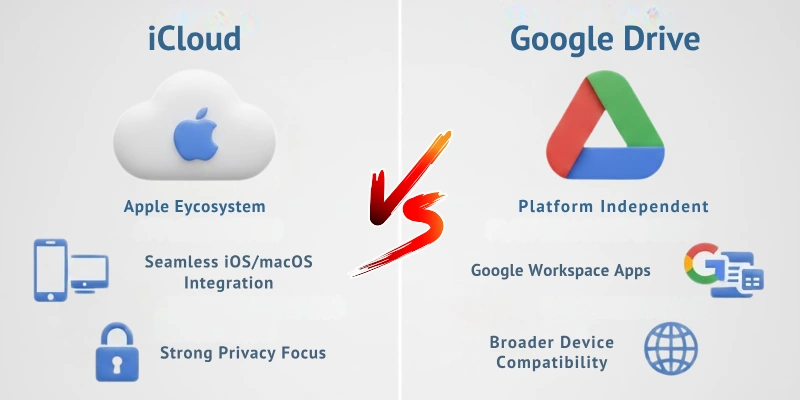
I use both tools daily while managing real files, backups, and shared folders. I have fixed sync errors, recovered missing photos, and dealt with storage limits on both platforms.
This comparison explains what actually causes these problems and which service handles them better.
Differences between iCloud and Google Drive
Below is a clear side-by-side comparison to help you understand how iCloud and Google Drive work in daily life.
- Storage & Pricing
- Ease of Use & Interface
- File Syncing & Performance
- Collaboration & Sharing
- Security & Privacy
- Photos, Backups & Media
- Platform Compatibility
Each section explains one main feature so you can easily see which service fits you better.
1. Storage & Pricing
This part explains how much free space you get and how much you pay when storage runs out.
iCloud
iCloud gives small free storage, and it fills up fast because it stores photos, videos, and phone backups together. I often see iPhone users buy storage sooner than expected.
- Gives 5 GB free storage
- Paid plans start at low monthly price
- Photos and backups use the same space
- Family members can share storage
- Works best for Apple device users
Google Drive
Google Drive gives more free storage and spreads it across files, emails, and photos. I find it better when I need space without paying early.
- Gives 15 GB free storage
- Paid plans come under Google One
- Storage shared with Gmail and Photos
- Family sharing is easy to set up
- Better value for most users
2. Ease of Use & Interface
This part shows how easy the app is to understand and use every day.
iCloud
iCloud feels quiet and simple because it works in the background. Most users do not need to open it often.
- Comes built into Apple devices
- Simple and clean design
- Very few settings to change
- Works inside Apple apps
- Can feel limited on Windows
Google Drive
Google Drive feels open and easy to control. I can see and manage my files without confusion.
- Clear and colorful layout
- Easy search bar on top
- Works well on web and apps
- More buttons and options
- Easy for kids and beginners
3. File Syncing & Performance
This part explains how fast files upload and stay updated on all devices.
iCloud
iCloud syncs files on its own, but users do not see much control. Large files may take time.
- Syncs files automatically
- Works well for small files
- Slows down with big uploads
- Limited sync control
- Best for background use
Google Drive
Google Drive shows clear syncing and works faster with big files. I trust it for heavy file use.
- Faster file syncing
- Shows upload progress
- Handles large folders well
- Works on slow internet
- Better control options
4. Collaboration & Sharing
This part shows how well you can share files and work with others.
iCloud
iCloud sharing works best with Apple users only. It is simple but not powerful.
- Easy sharing links
- Works with Apple apps
- Few teamwork tools
- Limited sharing control
- Not ideal for group work
Google Drive
Google Drive is made for sharing and teamwork. I use it daily with others.
- Fast file sharing
- Real-time editing
- Comments and suggestions
- Strong permission control
- Great for school and teams
5. Security & Privacy
This part explains how your files stay safe and private.
iCloud
Apple focuses strongly on privacy. I feel safe storing personal data here.
- Strong data protection
- Less user tracking
- Two-step login support
- Secure file access
- Good for private files
Google Drive
Google Drive is secure but uses data to improve services. I use it more for work files.
- Strong security system
- Login alerts and controls
- Activity tracking exists
- Safe for daily use
- Trusted by many users
6. Photos, Backups & Media
This part shows how photos, videos, and backups are handled.
iCloud
iCloud is very good at backing up iPhones. Photos and backups work smoothly.
- Auto photo backup
- Full phone backups
- Easy photo access
- Storage fills quickly
- Best for iPhone users
Google Drive
Google Drive works with Google Photos, which gives smart photo tools. I like its photo search.
- Smart photo sorting
- Face and place search
- Manual backup control
- More photo tools
- Better media management
7. Platform Compatibility
This part explains which devices each service supports.
iCloud
iCloud works best inside Apple devices and feels limited outside them.
- Best on iPhone and Mac
- Limited Android use
- Basic Windows support
- Web access available
- Apple-only focus
Google Drive
Google Drive works the same on almost every device. I use it everywhere.
- Works on all platforms
- Strong mobile and desktop apps
- Full web support
- Same features everywhere
- Best for mixed devices
Quick Comparison Table: iCloud vs Google Drive
Here’s a quick, beginner-friendly comparison table for iCloud vs Google Drive:
| Feature | iCloud | Google Drive |
| Free Storage | 5 GB | 15 GB (shared with Gmail & Photos) |
| Paid Plans | 50 GB: $0.99/mo200 GB: $2.99/mo2 TB: $9.99/mo | 100 GB: $1.99/mo200 GB: $2.99/mo2 TB: $9.99/mo |
| Platform Support | iPhone, iPad, Mac, Windows (limited) | Windows, Mac, Android, iOS, Web |
| File Sync | Automatic across Apple devices | Automatic across all devices with Drive app |
| Collaboration | Pages, Numbers, Keynote (Apple users only) | Google Docs, Sheets, Slides (real-time, cross-platform) |
| Privacy & Security | End-to-end encryption for sensitive data | Encrypted in transit & at rest; Google scans files for services |
| Best For | Apple ecosystem users, device backups, photos | Cross-platform users, teamwork, document collaboration |
Who Should Use iCloud?
iCloud works best for people who live in the Apple ecosystem and want everything to sync seamlessly without thinking about it. It handles backups, photos, and documents quietly in the background, making life easier for iPhone, iPad, and Mac users.
Here’s who benefits most from iCloud:
- Users who own multiple Apple devices and want automatic syncing.
- People who prioritize privacy and secure file storage.
- Those who need simple device backups for iPhone or iPad.
- Users who prefer Apple’s native apps like Pages, Numbers, and Keynote.
- Families who want to share storage and purchases easily.
Who Should Use Google Drive?
Google Drive is ideal for people who work across multiple devices or platforms and need easy file access, sharing, and collaboration. It integrates well with Google Workspace apps and offers more free storage than iCloud, making it perfect for both personal and professional use.
Here’s who benefits most from Google Drive:
- Users who need real-time collaboration on documents, spreadsheets, and presentations.
- People who use Windows, Android, or a mix of devices alongside Apple products.
- Those who want 15 GB of free storage across Gmail, Drive, and Photos.
- Teams or students who share files frequently and need flexible permission controls.
- Users who prefer cloud-based file management with easy search and organisation.
Alternatives
If iCloud or Google Drive do not meet your needs, there are other cloud storage options worth considering. Each has unique features depending on your priorities for security, collaboration, or storage size:
- OneDrive – Best for Windows users and Microsoft Office integration.
- Dropbox – Strong file-sharing and collaboration features across platforms.
- pCloud – Offers lifetime plans and client-side encryption for extra security.
- Internxt – Focused on privacy with zero-knowledge encryption.
Conclusion
In this guide, we have covered iCloud vs Google Drive. Both services have their strengths and limits. From my experience, the best way to manage them is to choose the one that fits your main devices and backup habits and use careful organisation to avoid running out of storage or losing files. Regularly checking your storage and syncing settings helps reduce risks.
Thank you for reading and taking the time to learn about these tools. Don’t skip the next part of the FAQs. I hope you will find something more interesting, so don’t miss it. If you miss it, you may lose something new.
FAQs about iCloud vs Google Drive
Here are some of the most frequently asked questions related to iCloud vs Google Drive.
iCloud works best for iPhone, iPad, and Mac users because it syncs automatically with all Apple devices. Google Drive can still be used on iOS, but it requires separate apps and manual syncing. For smooth backups and photo storage, iCloud usually has the edge for Apple users.
iCloud offers 5 GB of free storage, while Google Drive provides 15 GB shared across Drive, Gmail, and Photos. If you take a lot of photos or keep multiple backups, the free Google Drive storage may last longer. Paid plans are available on both platforms if you need more space.
Yes, you can access iCloud through the web browser on Android devices, but it does not offer a dedicated app like Google Drive. You can view and download files, but syncing is not automatic. For full mobile integration, Google Drive works better across Android devices.
Both iCloud and Google Drive encrypt files during transfer and storage, but Apple emphasizes end-to-end encryption for sensitive data. Google Drive uses strong security but may scan files for certain services. Using strong passwords and two-factor authentication improves safety on both platforms.
iCloud allows sharing via links or direct Apple ID access, mainly for Apple users. Google Drive provides more flexible sharing options, including permissions like view, comment, or edit. If you collaborate with teams or non-Apple users, Google Drive is usually easier.
Yes, you can use both services simultaneously to create extra backups of your photos and documents. iCloud works best for automatic iPhone backups, while Google Drive can store additional copies for cross-platform access. This method helps prevent data loss and keeps your files safe.
iCloud plans start at $0.99/month for 50 GB and go up to 2 TB for $9.99/month. Google Drive, via Google One, offers 100 GB for $1.99/month and 2 TB for $9.99/month. Choosing a plan depends on your storage needs, budget, and which devices you use most.
Google Drive allows real-time collaboration on Docs, Sheets, and Slides with multiple users. iCloud’s Pages, Numbers, and Keynote also support collaboration but mostly for Apple users. For team projects or schoolwork with mixed devices, Google Drive is usually more convenient.
You can export files from iCloud using iCloud.com or Finder on Mac and then upload them to Google Drive. Make sure your files are organized before transferring to avoid duplicates. Using this method helps you move large photo libraries and documents safely.
Google Drive integrates with Google Workspace apps, making it ideal for teams and remote work. iCloud works best for small businesses that primarily use Apple devices. Consider your workflow, device ecosystem, and collaboration needs before choosing the right cloud platform.






- Be Respectful
- Stay Relevant
- Stay Positive
- True Feedback
- Encourage Discussion
- Avoid Spamming
- No Fake News
- Don't Copy-Paste
- No Personal Attacks
- Be Respectful
- Stay Relevant
- Stay Positive
- True Feedback
- Encourage Discussion
- Avoid Spamming
- No Fake News
- Don't Copy-Paste
- No Personal Attacks
